
What Is a Web Favicon and How Do You Add It to Your Company Domain

Brand recognition across digital touchpoints requires absolute consistency down to the single pixel level. When a prospective client navigates multiple open tabs inside a desktop or mobile browser, their cognitive focus relies heavily on visual iconography to identify distinct corporate domains. A missing, generic, or poorly formatted icon within a browser window signals sub-standard engineering standards and directly harms the professional credibility of a digital asset.
A web favicon, short for favorite icon, functions as the primary visual shortcut for your company domain. This graphic asset appears prominently inside browser tab layouts, history registries, bookmark directories, mobile search engine results pages, and desktop home screen link layouts. Leaving this visual asset unconfigured forces modern web browsers to display a generic globe or empty document icon, which instantly erases your brand identity in a crowded digital space.
Deploying a precision-engineered favicon set involves much more than simply dropping a random square graphic file into your root server folder. Modern multi-platform environments require a specific collection of distinct sizes, aspect resolutions, and file formats to render crisply on everything from high-density mobile screens to legacy desktop browsers. Managing these graphic parameters ensures your business looks polished, credible, and technically sound to every visitor.
Failing to optimize these small visual touchpoints can actively undermine your broader marketing investments. When your brand imagery looks pixelated or fails to render entirely, user trust begins to fracture before they even read your headline. This professional degradation mirrors the commercial risks discovered when analyzing why a cheap online icon is not enough to build a real brand identity, highlighting the necessity of custom visual asset curation.
The Cross-Platform Multi-Format Favicon Framework
The modern operating system landscape is deeply fragmented. A single company website must render its identity icons perfectly across Apple iOS touchscreens, Google Android application grids, Microsoft Windows desktop shortcuts, and modern browser interfaces like Chrome, Safari, Firefox, and Edge. Utilizing a single legacy image file format across all these environments will inevitably lead to blurry scaling or complete rendering failures.
To build a flawless cross-platform visual shortcut, developers must move past outdated image design rules and embrace a modern, multi-format icon collection. This framework guarantees clean visual presentation regardless of the specific device or browser client used to access your domain.
- The Modern Scalable Vector Graphic (SVG): The current industry standard for modern web browsers. SVG assets use mathematical coordinate paths rather than fixed pixels, allowing a single lightweight file to scale infinitely from small tabs to massive displays with perfect vector clarity.
- The High-Density PNG Asset: Required explicitly for mobile devices and operating system shortcuts, such as Apple Web Clips and Android home screen app icons, where specific pixel boundaries are enforced.
- The Legacy ICO Container File: A specialized container format that bundles multiple pixel resolutions (16x16, 32x32, and 48x48) into a single file payload, necessary to maintain perfect backwards compatibility with legacy web browsers.
Technical Resolution and Sizing Matrix
Engineering a multi-platform icon ecosystem requires matching your visual assets with the precise specifications enforced by modern operating systems. Failing to provide the exact pixel size requested forces the device engine to stretch the image, introducing immediate blurriness that looks unpolished.
| Target Platform / Device Ecosystem | Required Pixel Resolution | Mandatory File Format Extension | Structural Function inside User Interface |
|---|---|---|---|
| Modern Desktop Browsers | Infinite (Scalable Vector) | .svg | Primary identity shortcut for tabs, bookmarks, and history panels |
| Legacy Browser Fallbacks | 16x16 / 32x32 / 48x48 | .ico (Bundled Container) | Backward compatibility support for older browser versions |
| Apple iOS Home Screen Shortcuts | 180x180 | .png | Apple Touch Icon used when users save links directly to their device |
| Android Device App Interfaces | 192x192 / 512x512 | .png | App grid icons managed via progressive web application manifests |
| Search Engine Mobile SERP Cards | 48x48 (Multiples of 16) | .png or .svg | Visual brand identifier displayed directly in mobile search listings |
Providing this complete matrix of asset variations protects your visual brand identity everywhere your domain appears on the web. This graphic precision is essential for projecting a high-value image that supports your brand's perceived value and website design strategy.
Implementing Favicon Code Across the Head Node
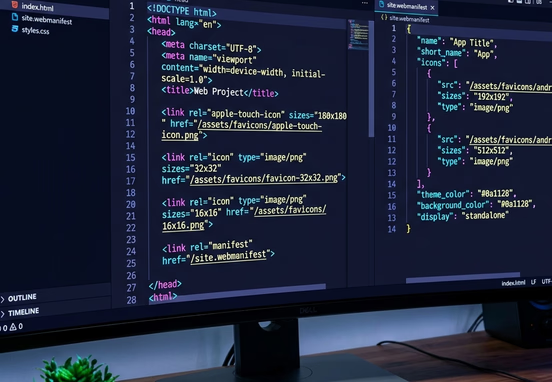
Once your asset variations are properly compressed and exported, you must inject precise code declarations into your master document head node. This programming tells browser crawlers exactly where your icon files live on your server, ensuring they can be found and cached without generating unforced file routing errors.
A clean implementation avoids clogging your frontend source code with redundant lines of code. By referencing only the mandatory platform paths, you preserve fast browser speeds and maintain clean layout semantics.
The following programming structure outlines the precise markup tags required to reference a modern cross-platform favicon collection inside your master website template:
+----------------------------------------+
|       User Navigates to Website        |
+----------------------------------------+
                        |
                        v
+----------------------------------------+
|      Browser Parses <head> Node        |
+----------------------------------------+
                        |
      +-----------------+-----------------+
      |                                   |
      v                                   v
[ Modern Desktop Browser ]     [ Mobile OS Platform ]
      |                              |
      +---> Supports SVG?            +---> Is Apple iOS?
      |     |                              |
      |     +---> Yes: Load icon.svg       +---> Yes: Load apple-touch-icon.png
      |     |                              |
      |     +---> No: Load favicon.ico     +---> No: Read site.webmanifest
      |           (32x32 Fallback)               |
      |                                          +---> 192x192 PNG (App Grid)
      |                                          +---> 512x512 PNG (Splash)
To support Android devices cleanly, you should pair these HTML declarations with a lightweight progressive web app manifest file named site.webmanifest. This JSON structure tells mobile devices exactly how to handle your brand imagery when users save your site as a shortcut:
+----------------------------------------+
|       PWA / Mobile Engine Launch       |
+----------------------------------------+
                        |
                        v
+----------------------------------------+
|     Parse site.webmanifest (JSON)      |
+----------------------------------------+
                        |
      +-----------------+-----------------+
      |                                   |
      v                                   v
[ Display & Theme Config ]     [ Icon Resolution Asset Flow ]
      |                              |
      +---> Set Display Mode         +---> System Icon Grid
      |     (Standalone)                   (Loads 192x192 PNG)
      |                              |
      +---> Inject Theme/BG Color    +---> App Splash Screen
            (#0a0a0a Brand Spec)           (Loads 512x512 PNG)
Deploying structured configurations directly into your custom source code guarantees that your visual assets load correctly across every user environment. This clean setup ensures your tiny brand touchpoints support your broader digital marketing goals, helping you reach a good conversion rate for your hand-coded website.
Design Principles for Micro-Scale Corporate Icons
Designing artwork that remains perfectly readable at a tiny 16x16 pixel size requires a dramatic departure from standard corporate logo rules. Intricate design details, complex gradients, and long taglines collapse into an illegible visual mess when shrunk down onto a browser tab.
- Emphasize Radical Visual Simplicity: Focus on a single high-contrast geometry block, a clean corporate monogram, or a simplified version of your main logomark.
- Optimize for Light and Dark Interfaces: Modern web browsers allow users to toggle between light and dark display modes. Your favicon must feature clean background contrast or smart transparency rules to prevent it from disappearing on dark tabs.
- Enforce Strict Boundary Spacing: Keep your visual mark centered within its canvas frame, leaving a thin margin of negative space to prevent the outer edges from getting clipped by browser container shapes.
Visual Assets Engineering Directive: Never allow automated conversion tools to auto-generate your mobile favicons from a massive corporate print logo without checking the output files. Auto-generated files often compress details poorly, creating blurry edges and messy layouts that look unpolished. Always have a human designer fine-tune your vector coordinates by hand at native pixel targets to protect your brand quality.

Avoiding Server Errors and Crawl Budget Waste
Failing to properly configure your favicon files on your server doesn't just hurt your brand design; it can introduce silent technical performance penalties across your entire hosting setup. When a web browser hits your site, it automatically searches your root folder for a default path file named favicon.ico, even if your code doesn't explicitly link to it.
If your engineering team leaves that file out of the server directory, your system will return a hidden 404 File Not Found response header for every single page impression. This hidden error forces your server to waste valuable processing cycles generating custom error pages, which can slow down page speeds and waste your search crawler budget.
Regularly auditing your server files ensures that search engine crawlers can scan your content with zero technical delays. Keeping your file layout clean helps you avoid the unforced indexing drops discovered when troubleshooting why a website isn't showing up on search engines via Search Console.
The Multi-Platform Validation and Deployment Routine
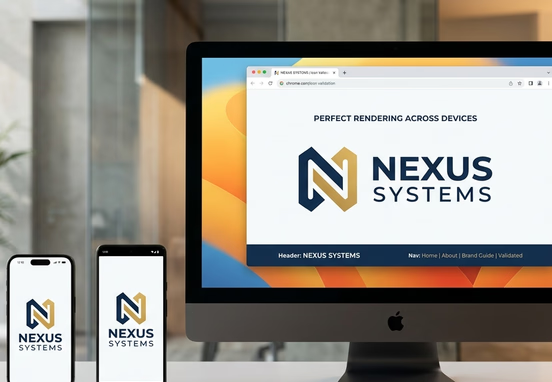
To guarantee your visual brand assets render perfectly across every digital interface, your development team must follow a strict quality verification process before deploying code updates to your live production servers.
Taking a systematic approach to asset deployment protects your brand presentation. Focus your engineering and design teams on this continuous visual verification checklist:
- Verify Root Level File Placements: Confirm that your default fallback icon is hosted directly inside your public root folder to satisfy automatic browser lookups.
- Audit Contrast in Dark Interface Modes: Test your icon assets against pure black and dark gray backdrops to confirm your brand geometry stands out clearly on dark themes.
- Run High-Density Device Render Checks: Inspect your site across high-resolution Retina smartphone displays to ensure no pixelation occurs along your vector design boundaries.
- Inspect Search Engine Listing Captures: Monitor your organic mobile search listings over time to confirm search bots are pulling and displaying your updated brand icon correctly.
Elevating Brand Value with High-Performance Development
Long-term marketplace visibility belongs to organizations that treat their digital footprint as high-performance infrastructure requiring a stable technical foundation. Ignoring small visual touchpoints, leaving server files unconfigured, or using messy, automated conversion tools creates an unpolished environment that quietly degrades buyer trust.
Investing in tailored, hand-coded web architecture removes the platform restrictions, plugin conflicts, and bloated code layouts that haunt template-built systems. When your website operates as a fast, crisp application, your brand assets render flawlessly, securing your market authority and driving long-term profit growth.
Ensure your corporate brand imagery renders with perfect precision and speed across every digital interface by using our elite speed-first design and development services.